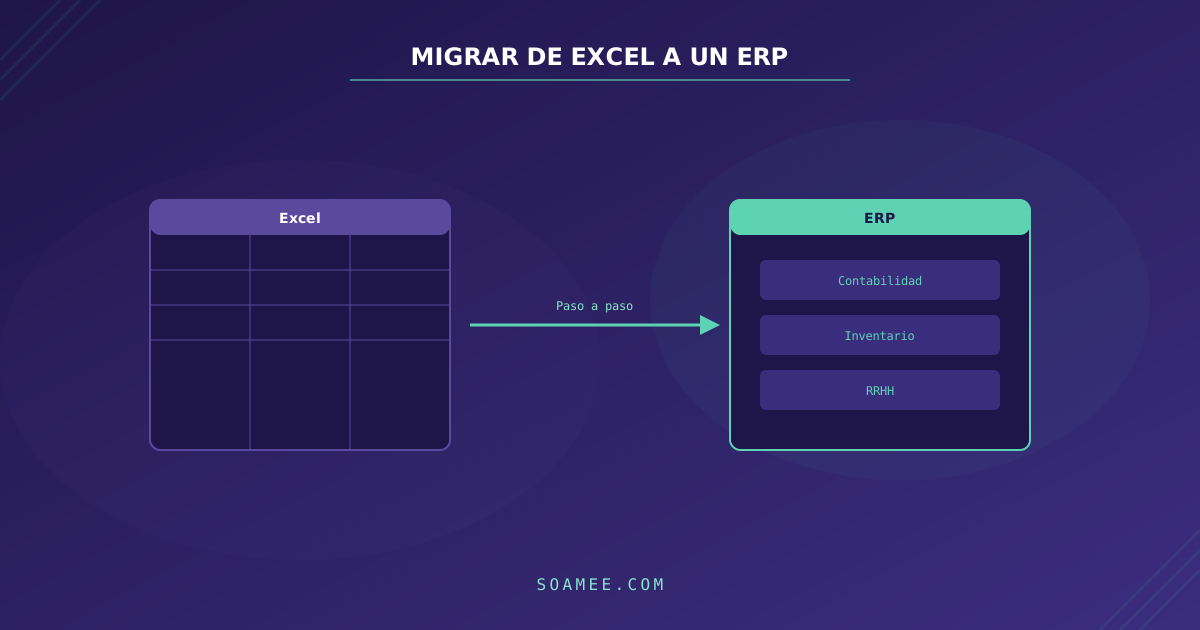
If your company manages inventory, invoicing, purchasing, or HR with Excel spreadsheets, you are not alone. According to market data, over 60% of SMBs still use Excel as their main “ERP”. It works, until it doesn’t: duplicate data, contradictory versions of the same file, undetected formula errors, and hours lost on tasks a system would automate in seconds.
This guide explains step by step how to migrate from Excel to an ERP without losing data, without stopping your business, and without spending more than necessary.
Signs You Need an ERP (and Excel Is No Longer Enough)
1. Multiple people edit the same files
When two people modify the same spreadsheet simultaneously, someone loses data. “Final versions” multiply: budget_v3_final_FINAL_revision2.xlsx. If this sounds familiar, you need a system with a centralized database.
2. You spend more than 5 hours weekly on repetitive admin tasks
Copying data from one Excel to another, generating reports consolidating multiple sheets, sending invoices one by one, manually updating prices. If you add up these hours, an ERP’s cost is justified by the time you recover alone.
3. Errors cost you money
A misplaced decimal in a formula, a miscalculated VAT, stock that doesn’t match reality. When spreadsheet errors generate client complaints, tax issues, or inventory losses, it’s time to automate.
4. You can’t make decisions with real-time data
If knowing this month’s sales requires consolidating data from 5 different files, your reaction speed is slow. An ERP gives you dashboards with data updated to the second.
5. Your team has grown
Excel works for 2-3 people. When the team grows to 5, 10, or 20 people who need access to the same information, you need a multi-user system with permissions, auditing, and simultaneous access.
Step 1: Audit Your Current Situation
Before choosing any ERP, document exactly what you do with Excel today:
- Inventory all your files: list every Excel your team uses for management
- Identify master data: customers, products, suppliers, employees
- Map the processes: what each person does, in what order, with what data
- Detect dependencies: which sheets feed others, what data is copied manually
- Quantify the time: how many weekly hours each person spends on Excel tasks
The result is a clear map of what you need your ERP to do.
Step 2: Choose the Type of ERP
You have three main options:
Standard SaaS ERP (Holded, Xero, Odoo)
For whom: companies with standard processes that want to be operational quickly.
- Holded: ideal for SMBs with simple processes. Invoicing, accounting, basic inventory. From 40 EUR/month.
- Xero: strong in accounting and invoicing. From 35 EUR/month.
- Odoo: the most flexible and complete. Modules for everything. Community is free, Enterprise from 25 EUR/user/month.
Customized ERP on Odoo
For whom: companies with processes that partially fit Odoo but need customizations.
Market cost: 15,000-60,000 EUR implementation + Odoo Enterprise license.
Custom ERP
For whom: companies with very specific processes that no standard ERP covers well.
Market cost: 30,000-200,000 EUR depending on complexity. More on this in our custom ERP solution page.
Step 3: Clean Your Data Before Migrating
Data migration is the most critical phase and where most projects fail. Your Excel files probably have:
- Duplicates: the same customer with three different names
- Inconsistencies: mixed date formats, incomplete addresses
- Obsolete data: customers that no longer exist, discontinued products
- Errors: broken formulas, circular references, text in numeric fields
Spend time cleaning before migrating. It’s much easier (and cheaper) to clean in Excel than in the ERP already in production.
Data Cleaning Checklist
- Remove duplicate rows
- Standardize formats (dates, phone numbers, tax IDs)
- Complete required fields (email, fiscal address)
- Validate numeric data (prices, quantities, tax rates)
- Archive historical data you don’t need to migrate
- Create a field mapping: Excel column to ERP field
Step 4: Incremental Migration (Not Big Bang)
The most dangerous mistake is trying to migrate everything at once on a Friday afternoon and starting Monday with the new ERP. If something fails, your company is paralyzed.
The correct approach is module by module:
- Week 1-2: Migrate master data (customers, products, suppliers)
- Week 3-4: Activate invoicing in the ERP (keep issuing in Excel in parallel the first week)
- Week 5-6: Activate inventory
- Week 7-8: Activate purchasing
- Week 9+: Additional modules by priority
In each phase, the old and new systems run in parallel until the team confirms the ERP works correctly. Only then is Excel “turned off” for that process.
This approach is similar to the strangler fig pattern we use in more complex software migrations.
Step 5: Train Your Team
ERP adoption depends more on people than technology. A perfect ERP that nobody uses is a failure. Invest in training:
- Initial training: 2-4 sessions of 2 hours per module
- Documentation: quick guides with screenshots for daily processes
- Support: an internal champion who resolves questions in the first weeks
- Feedback: weekly meetings in the first month to detect issues
Market Costs for Migrating from Excel to ERP
| Concept | Market range |
|---|---|
| Consulting and planning | 2,000 - 8,000 EUR |
| SaaS ERP implementation | 3,000 - 15,000 EUR |
| Custom ERP implementation | 30,000 - 200,000 EUR |
| Data migration | 2,000 - 10,000 EUR |
| Team training | 1,000 - 5,000 EUR |
| Annual licenses (SaaS) | 500 - 12,000 EUR/year |
The typical ROI of migrating from Excel to an ERP ranges between 6 and 18 months, depending on operations volume and hours recovered.
Common Mistakes (and How to Avoid Them)
1. Choosing the most complete ERP instead of the most appropriate
You don’t need SAP if you invoice 500,000 EUR per year. Choose an ERP proportional to your size and complexity.
2. Not involving the team from the start
If you impose an ERP without consulting the users who will use it every day, resistance to change will be brutal. Involve them in selection and process design.
3. Migrating dirty data
“Garbage in, garbage out.” If you migrate data with duplicates and errors to the ERP, you’ll have the same problems as in Excel but in a more rigid system.
4. Trying to replicate Excel exactly
Don’t try to make the ERP work like Excel. Use the migration to improve your processes, not to replicate inefficiencies in a new tool.
5. Not planning maintenance
An ERP needs updates, backups, and someone to resolve incidents. Include maintenance costs in your budget from the start.
Conclusion
Migrating from Excel to an ERP is not just a tool change: it’s a transformation of how your company operates. Done well, it saves hours of manual work, eliminates errors, and gives you real-time business visibility. Done poorly, it can be an expensive disaster.
The key is planning well, migrating incrementally, cleaning data before moving it, and training the team. It’s not a one-week project, but it doesn’t have to be a year of suffering either.
If you want to evaluate which ERP type best fits your company or need help with data migration, at Soamee we offer a free consultation where we analyze your case.